On most uLisp platforms a convenient way of entering a long program is to copy it from a listing, paste it into the Arduino IDE Serial Monitor input field, and press Return to enter it.
For example, you could display this Infinite precision arithmetic program:
http://www.ulisp.com/list?2ADN
Do Select All, Copy, then in the Serial Monitor input field do Paste.
You could use the same technique to enter a Lisp program you are writing in a text editor.
This works on most platforms, apart from ESP32 boards that use the built-in CDC USB interface, due to a limitation of the rate at which they can process the serial input. On those boards, pasting a long listing causes the serial interface to lock up, requiring a reset of the board.
One workaround is to copy and paste a few lines at a time; I’ve found three is a good compromise. However, this is very tedious for a long listing.
I’ve recently found an alternative, which is to use the free CoolTerm terminal program, available for both Mac and Windows. This adds a delay after transferring each line, which gives the ESP32’s built-in USB interface time to catch up with the serial input.
Using CoolTerm
CoolTerm is available for free download from Roger Meier’s site:
To set it up:
- Click the Options button in the toolbar.
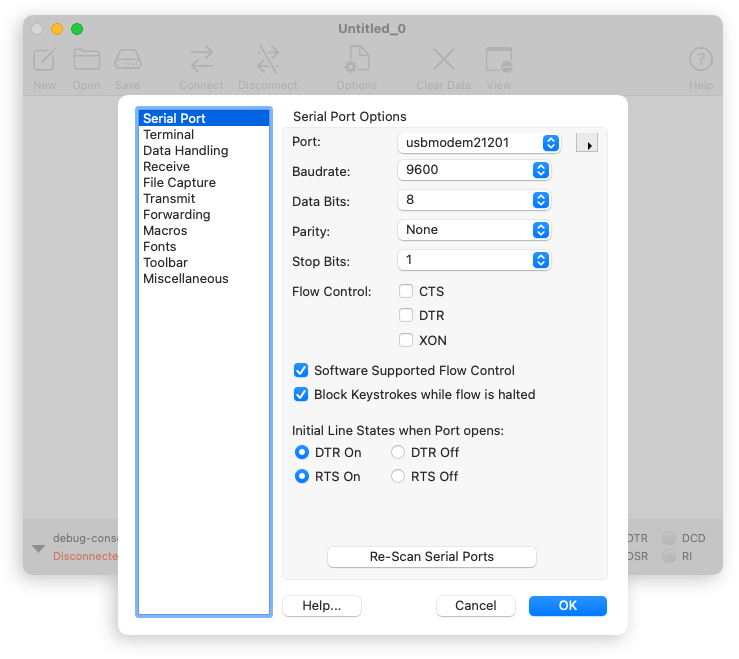
- Click the Serial Port tab, and select the board’s serial port from the Port menu:
- Click the Connect icon in the toolbar, and you should get the uLisp prompt.
- Copy the listing you want to enter, making sure to include the comment at the top of the listing, and do Paste into the terminal window.
The comment disables echo while the listing is being transferred, which prevents the echo from interfering with the transfer.
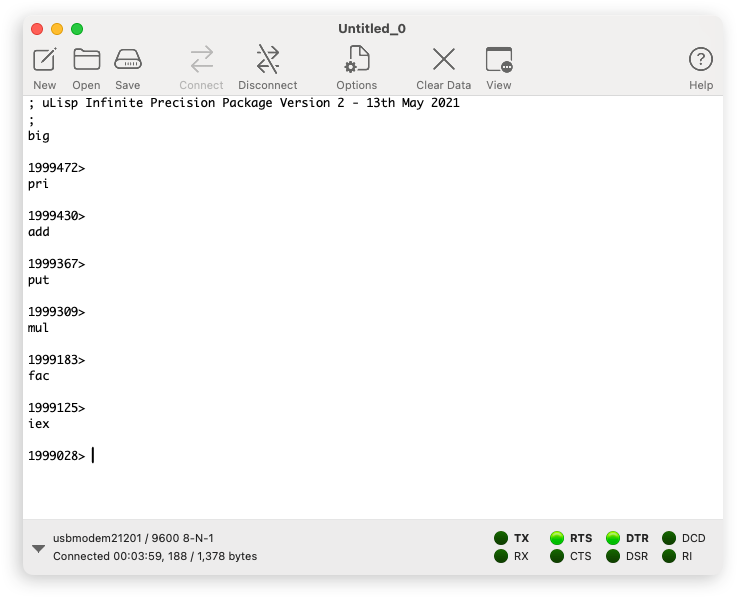
You should see the names of the functions being entered into uLisp:
When you’re interacting with uLisp, rather than pasting in a listing, you might find it more convenient to use Line Mode:
- In Options click the Terminal tab and set the Terminal Mode to Line Mode:
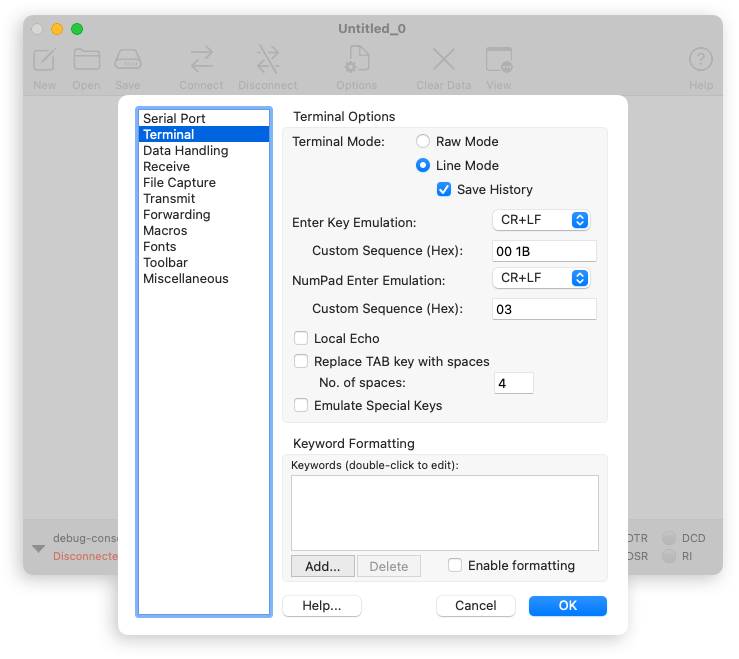
In line mode you can edit the line, in a separate field at the bottom of the terminal window, before pressing Return to enter it.
Note: When using CoolTerm, don’t upload uLisp with the following options enabled:
// #define lineeditor
// #define vt100
CoolTerm has it’s own line editor (and doesn’t work with uLisp’s line editor), and doesn’t have VT100 emulation.